


Zero-touch Xero reconciliation: The perfect setup guide
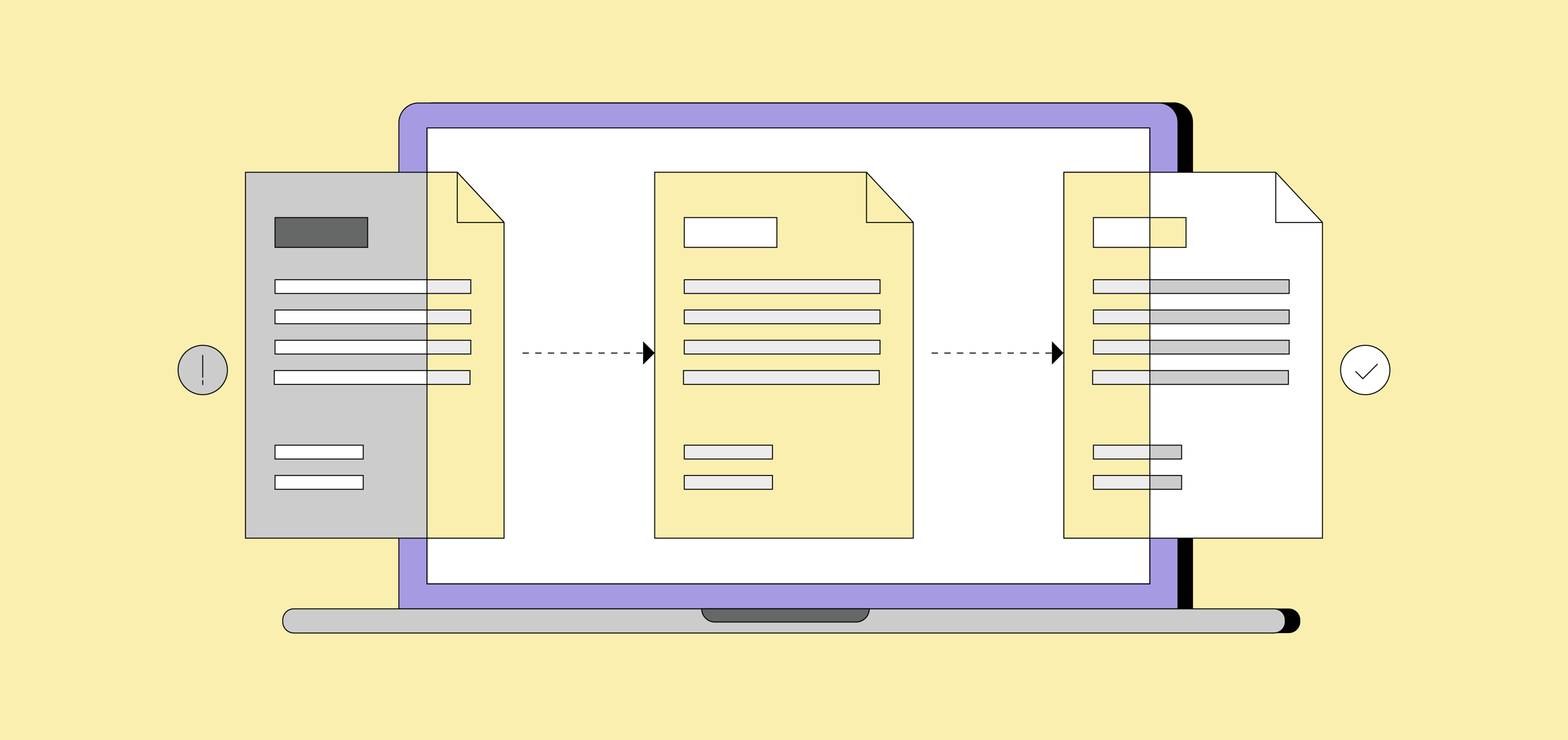
Reconciliation shouldn’t take hours of matching transactions, fixing tax codes and chasing missing receipts. For many finance teams, however, it still does.
Missing receipts, inconsistent coding and manual uploads all create friction that slows down the reconciliation process. But with the right setup, you can remove that friction entirely.
By combining Pleo’s direct integration, automated data capture and real-time bank feeds, you can turn reconciliation from a manual task into a simple review step.
Here’s how to set up zero-touch reconciliation with Xero.
Key takeaways:
- Connect Pleo and Xero properly from the start. A clean integration setup is the foundation of zero-touch reconciliation.
- Pre-code expenses automatically. Map categories so transactions arrive in Xero already classified and ready to match.
- Sync tax rates and tracking data. Eliminate manual adjustments by aligning Pleo with your Xero setup.
- Automate both sides of reconciliation. Use the Direct Bank Feed and expense export together to create perfect matches.
- Capture receipts continuously. With Pleo Fetch, transactions arrive in Xero fully documented and compliant.
- Turn reconciliation into a confirmation step. When everything is aligned, matching transactions becomes a one-click task.
What does ‘zero-touch reconciliation’ actually mean?
Zero-touch is all about removing manual effort.
In a traditional setup, reconciliation involves:
- Uploading or importing bank data
- Matching transactions manually
- Fixing incorrect categories or tax rates
- Chasing receipts after the fact
With a zero-touch setup, those steps happen automatically in the background.
Transactions are:
- Captured in real time
- Categorised correctly at the point of spend
- Matched against bank data automatically
- Fully documented with receipts attached
By the time they reach Xero, there’s nothing left to fix – just confirm.
How to set up zero-touch Xero reconciliation in Pleo
1. Connect the direct integration
The foundation of a zero-touch setup is the direct API connection.
In Pleo:
- Go to Settings → Integration and select Xero
- Grant Pleo access to your Xero organisation
Pleo automatically creates a ‘Pleo’ bank account in your Xero chart of accounts.
Do not change the coding of PLEOBANK or PLEO in Xero, as the integration relies on these specific identifiers to sync data.
2. Map your chart of accounts
For reconciliation to be ‘zero-touch,’ every Pleo category must correspond to a Xero nominal code.
In Pleo:
- Go to the Categories page
- Map each Pleo category (e.g. ‘Travel’) to its corresponding Xero nominal code (e.g. 493)
When an employee selects a category in the Pleo app, the transaction is automatically ‘pre-coded’ for Xero.
3. Sync tax rates and tracking categories
Avoid manual tax adjustments by pulling your existing Xero settings into Pleo. Once nominal codes are mapped, Pleo automatically applies your default Xero tax rates.
Import your Xero Tracking Categories as Tags in Pleo. This allows you to track spend by department, region or project without manual data entry later.
4. Enable the Pleo Direct Bank Feed
This is the key to zero-touch reconciliation. Pleo provides a Direct Feed that automatically pushes statement data into Xero twice daily – typically at 9 a.m. and 2 p.m. UK time.
You don’t need to download and upload bank statements. The bank side of reconciliation is always up to date.
5. Automate receipt collection with Fetch
Reconciliation often stalls because of missing receipts. Pleo Fetch removes that bottleneck.
Fetch:
- Scans employee inboxes for digital receipts
- Extracts invoices automatically
- Matches them to the correct transaction
This means transactions arrive in Xero with the receipt already attached, helping meet documentation requirements instantly.
6. The ‘one-click’ export & match
Whilst the Bank Feed is automatic, you still ‘push’ the enriched expense data (with receipts and notes) to Xero.
In Pleo:
- Go to Export
- Review your transactions
- Click Export to Xero
All that’s left is to click ‘OK’ in Xero’s bank reconciliation screen to confirm the match.
Pro tip: To account for the money you send to Pleo, record the transfer in Xero as a bank transfer from your main business account to the Pleo account. This ensures your balances always match.
From manual matching to automatic alignment
Most reconciliation issues come from inconsistent or incomplete data. Expenses are coded incorrectly, tax rates don’t align, receipts are missing and bank data is delayed or incomplete.
By the time transactions reach Xero, finance teams are already dealing with problems that should have been solved earlier.
A zero-touch setup works because both sides of reconciliation are aligned from the start.
- The bank feed reflects real-time transactions
- Expense data is categorised correctly at the point of spend
- Receipts are attached automatically
- Tax and tracking data are already applied
There’s no need to reconcile differences because there are no differences.
Instead of matching transactions line by line, you’re confirming that everything is already correct.
Best practices for a zero-touch setup
If you want reconciliation to stay frictionless over time, a few principles make all the difference.
- Keep category mapping clean and consistent
Avoid overlapping or unclear categories. The clearer your structure, the smoother your exports. - Standardise how employees categorise spend
The more consistent inputs are, the less correction is needed later. - Encourage real-time receipt capture
Even with Fetch, reinforcing good habits helps maintain complete records. - Review exceptions, not every transaction
Focus on outliers rather than checking every transaction manually. - Maintain your integration setup
Avoid changing key account mappings or structures without understanding the impact.
Reconciliation without the manual work
Reconciliation is one of those processes that feels fixed – something finance teams just have to spend time on every month. But that’s not actually true.
With the right setup, most of the work happens before reconciliation even begins.
With Pleo and Xero working together:
- Transactions are captured and categorised in real time
- Receipts are attached automatically
- Bank data is always up to date
- Matches happen instantly
So when it’s time to reconcile, you’re not digging through data or fixing errors – you’re simply confirming what’s already been done. That’s what zero-touch reconciliation really means.